
Digilock Versa in Malow Furniture – A Practical Investor's Guide
In the era of flexible work models like hot-desking or hybrid systems, the role of the traditional employee locker is changing. Today, furniture is not just storage space but a piece of facility infrastructure that must guarantee security, reliability, and intuitive operation.
At Malow, we perfectly understand these needs, which is why we have collaborated with security technology leaders for years. One of our business partners is the Dutch company Digilock. The primary Digilock model in the Malow offer is the Digilock Versa. It is the direct successor to the SOLA line – the previous generation of these locks.
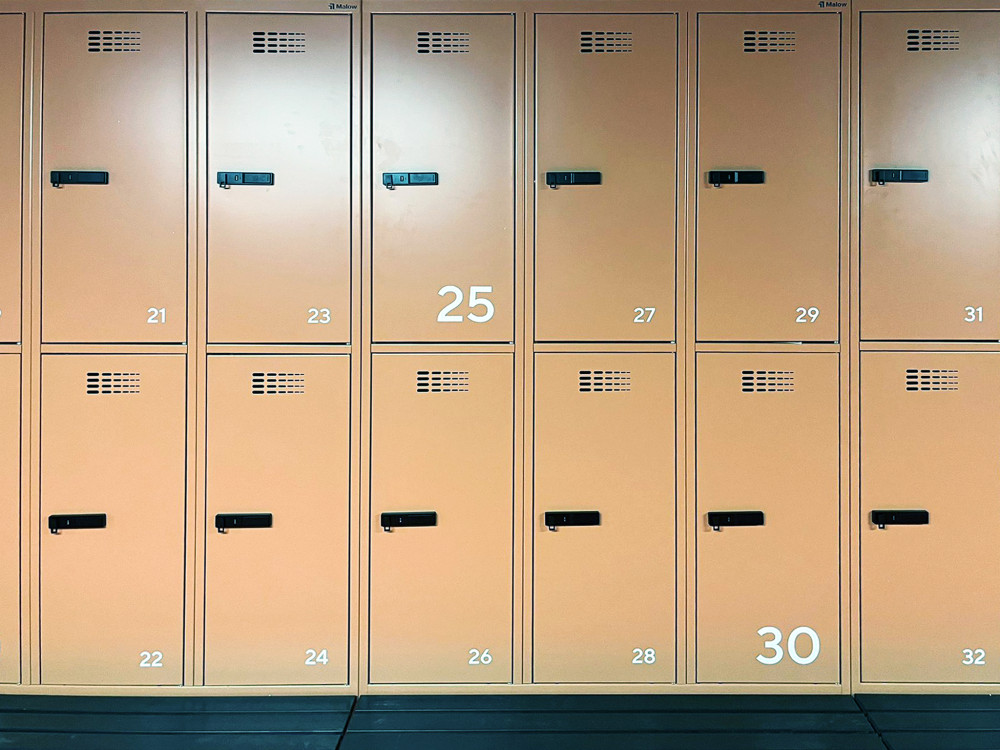
We have prepared the following guide for investors, facility managers, and IT administrators facing the challenge of choosing the optimal access control system. We will explain the differences between the three key variants: Basic, Advanced, and Networked, and guide you step-by-step through their configuration procedures.
DIGILOCK VERSA – Common Features and Key Parameters
Regardless of the chosen management variant (Basic, Advanced, or Networked), every lock in the Versa family shares the same technological and mechanical foundation. By choosing these solutions for Malow furniture, you can be sure that every device meets rigorous safety and durability standards.
Key Technical Parameters:
- Frequency and Standards: The locks operate at a frequency of 13.56 MHz and support the most popular RFID standards, such as Mifare (Classic, DESFire EV1/EV2/EV3), iClass, and ISO 14443A and B. This makes the systems compatible with most access cards used in office buildings.
- High Resistance (IP55): The lock housings are designed to withstand difficult conditions – they are resistant to dust and water jets, allowing for installation not only in offices but also in pool locker rooms or industrial facilities
- Power and Efficiency: The devices are powered by two CR2450 lithium batteries, allowing for approximately 128,000 work cycles (According to the manufacturer Digilock, an average of 5 years of use without service, though one should be ready to change batteries before this time).
Private Mode vs. Public Mode – What is the difference?
Every Digilock Versa lock offers flexibility in choosing access logic, allowing Malow furniture to be adapted to the specific nature of a given facility.
- Private Mode (Assigned):
- Application: Permanent workstations, employee lockers, personal storage.
Operation: The lock is permanently programmed to react only to a specific card or group of cards assigned to a given user. The locker remains closed until the authorized person uses their RFID medium.
- Public Mode (Shared):
- Application: Sports locker rooms, swimming pools, hot-desk offices, receptions.
Operation: The system works on a "first-come, first-served" basis. Each locker is open by default. A user approaches any free locker, hides their belongings, and closes it with their own card. From that moment, the lock is blocked and can only be opened by that specific card (or a manager key). After opening and emptying the locker, the lock returns to standby mode for the next user.
VERSA BASIC – Basic Offline Locks
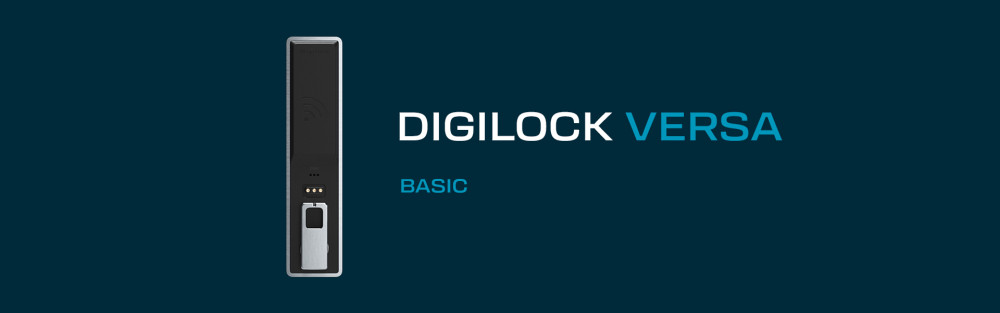
Versa Basic is a completely offline solution. It does not have wireless communication modules, and the device's functionality is based on local memory managed with physical keys.
Key functionalities of the BASIC lock:
- Exclusively local management
- Physical keys
- Two operating modes
- No audit trail
- No digital support
For proper operation, VERSA BASIC requires:
- Yellow Programming Key – used for the first initialization of the lock in the facility and for manual changes of the operating mode (Shared/Assigned).
- Black Manager Key – used for emergency opening of lockers and manual assignment of user cards in private mode.
How to program a VERSA BASIC lock?
- Initialization (First start): Touch the yellow programming key to the contact points of the new lock. The lock will beep and flash its LED – from now on, the lock is part of your facility.
- Manager Registration: Immediately after using the yellow key (within 5 seconds), touch the black manager key. It will be remembered as the master key, allowing the locker to be opened at any time.
- Assigning a user card (Assigned mode only): 1. Touch the black manager key to the contacts (the LED will start flashing). 2. Within 5 seconds, touch the RFID card you want to give to the user. 3. The lock will flash green, confirming the assignment of the card to the specific locker.
How to change the operating mode (Shared vs Assigned) – Step-by-step instructions
The Versa lock can work in one of two modes: Shared (common use, e.g., at a pool – the locker is open, and the user closes it with any card) or Assigned (assigned, e.g., an employee locker – the lock reacts only to a specific, programmed card).
To change the mode in the Basic version, follow these steps:
- Preparation: You must have the Yellow Programming Key that was previously assigned to the lock.
- Enter programming mode: Touch the Yellow Programming Key to the contacts on the front of the lock and hold it for about 5 seconds.
- Observe the LED: If the LED starts flashing green, it means the lock has switched to Assigned mode. If the LED starts flashing red, it means the lock has switched to Shared mode.
- Confirmation: Remove the key. The lock will remember the setting. If you want to change the mode to the opposite one, simply repeat the entire procedure.
VERSA ADVANCED – Scalable Digital Management
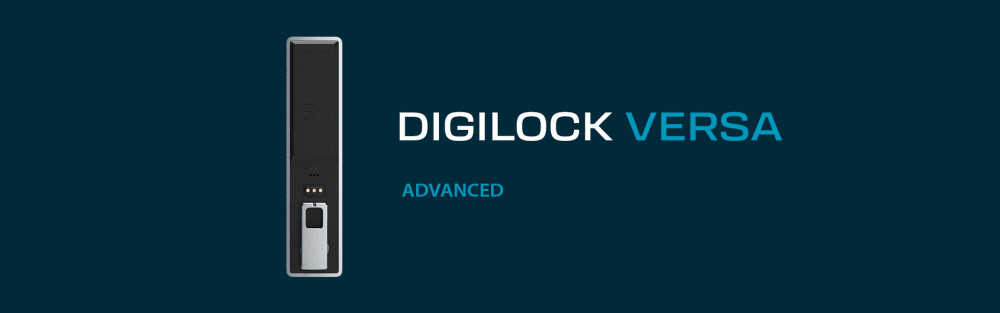
Versa Advanced offers the same physical parameters as the Basic version, but offers a special tablet for management that allows for advanced lock settings. It allows you to set the appropriate parameters, then copy them from the tablet to the key, and then to the lock.
Key functionalities of the ADVANCED lock:
All functionalities of the BASIC version plus:
- Support via Advanced Tablet
- Audit Trail
- Fast bulk programming: The ability to instantly "click through" an entire row of cabinets with one key containing ready-made settings.
- Schedule management: Automatic locker opening function at a specific time (e.g., for cleaning services).
For proper operation, VERSA ADVANCED requires:
- Advanced Tablet – a dedicated device with an installed application for digital management of the locker and user database.
- USB-Data Cable – a cable connecting the tablet with the white key, used for transferring programmed settings.
- White Data Key – an information carrier that you physically "touch" the locks with to send configuration from the tablet or download event history (audit) from them.
How to program VERSA ADVANCED locks?
- Configuration in the app: In the Digilock app on the tablet, you define the facility parameters (e.g., locker numbers, operating modes, or Auto-Unlock function at a specific time). The most important part is creating a profile that will be transferred to the lock.
- Preparing the White Key: Connect the tablet to the White Data Key using the USB cable. In the app, select the data transfer option (Upload to Key).
- Synchronization with the lock: Approach the lockers and touch the White Key to the contacts on the front of the locks. The lock downloads the configuration from the key.
- Downloading the audit: To check usage history, battery status, or other lock parameters, touch the White Key to the lock and select the data download function, which you then read on the tablet.
How to change the operating mode in the Advanced version
Unlike the Basic version, you do not use the yellow key here. Everything is done through the system:
- Change in the app: On the tablet, select a lock or group of locks and change their operating mode.
- Key update: Transfer the new data to the White Key.
- Transfer: Touch the key to the locks, automatically changing their operating mode.
User management and manager keys
Physical manager keys (black) still serve for emergency opening, but their permissions are granted via the tablet. If a user card is lost, simply block it in the application and update the lock with the White Key – without needing to reset the entire device.
VERSA NETWORKED – Locks Connected to the Internet
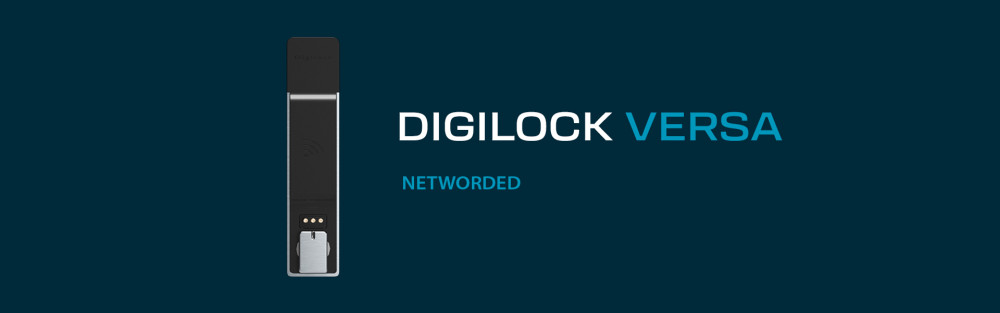
Versa Networked is the highest standard in the Versa family, offering full two-way communication. The lock sends information to the system (e.g., low battery), and the system can send commands to the lock (e.g., remote opening). This is an ideal solution for dispersed facilities.
Key functionalities of the NETWORKED lock:
All functionalities of the ADVANCED version plus:
- Real-time management: Change settings and permissions remotely from anywhere, without having to approach the locker.
- Communication via Gateways: Wireless connection of locks to the internet network (via Bluetooth/Wi-Fi)
- Mobile ID (Smartphone): Ability to open lockers using a smartphone via Bluetooth (BLE).
- Remote technical monitoring: View battery status and health of each lock in real-time from the administrator panel.
- Full Cloud analytics: Generating advanced reports on locker occupancy and utilization across the entire facility.
For proper operation, VERSA NETWORKED requires:
- Gateway (Hub) – a device mounted in the room (one for every 25-50 meters of range) that communicates with the locks via Bluetooth and sends data to the cloud.
- Networked Tablet – the center for managing the system online, connected to the Wi-Fi/Ethernet network.
- Gateway Power Supply – dedicated power for the Gateway unit.
- Mobile App (Mobile ID) – optional software equipment for end users, enabling locker opening with a smartphone.
How to program VERSA NETWORKED locks?
Required infrastructure includes: Networked Tablet, White Data Key, and Communication Gateways.
Configuration procedure:
- Configuration in the app: Configuration in the app is analogous to the Advanced version.
- White key preparation and lock synchronization: Analogous to the Advanced version, settings from the app should be transferred to the white key, and from the white key to the locks in the room.
- Gateway Installation: Gateways are mounted in the room – the maximum distance of a cabinet from the gateway is 50m. The gateway is a device that receives lock information via Bluetooth and sends it to the data aggregation cloud. This makes managing locks from the application possible.
- System pairing: In the application, you start the pairing procedure. The gateway automatically detects locks previously initialized with the White Key.
- Remote management: From this moment, you manage the lockers from anywhere via the administrator panel – without needing to approach the furniture.
How to change the operating mode in the Networked version
This is the fastest method in the entire Versa family:
- Change in the panel: Log in to the Cloud Management software and change the mode of the selected group of locks.
- Automatic synchronization: The system sends the command through the BLE-WIFI gateways. The change occurs instantly.
Why is the NETWORKED version a large-scale saving?
The Networked version requires the largest initial investment due to the network infrastructure, but it offers unrivaled comfort and control. If you manage hundreds of lockers and want to eliminate the need to physically approach them for administrative purposes, Networked is the only right solution.
How to choose the right Digilock Versa variant
The choice of the appropriate Digilock Versa variant should primarily result from the scale of the facility, its method of use, and the expected level of control and automation. In smaller implementations, the Basic version will work well, while facilities requiring greater flexibility and control will benefit from implementing the Advanced or Networked versions. Regardless of the chosen solution, the common denominator remains reliability, security, and the ability to adapt the system to the real needs of users.
Order Malow furniture equipped with Digilock locks today!